
Watch how citizenserve's software handles municipal business tax receipts in this 70-minute demo. Request your live demo by entering your details below.
Display Citizenserve in Other Languages – Google Translation Setting
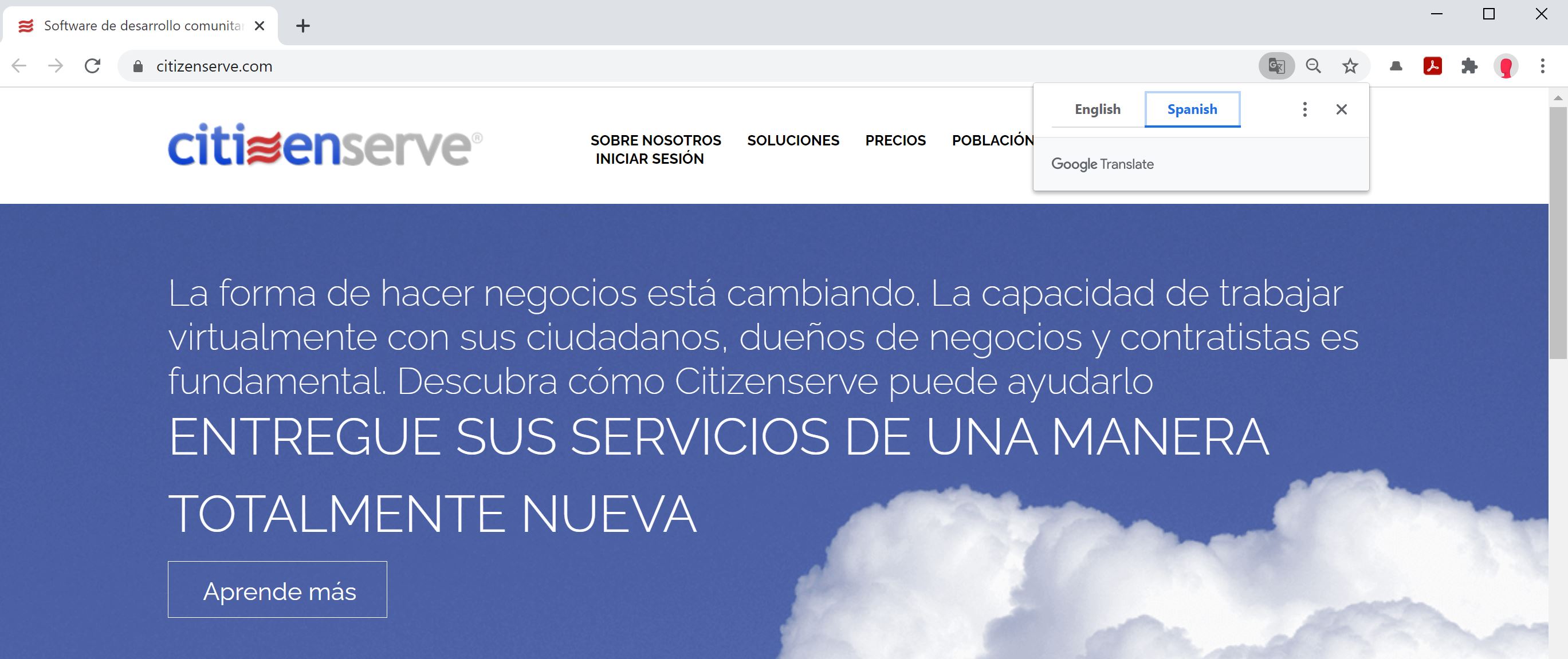
Display Citizenserve in Other Languages - Google Translation Setting
Use Google Translation setting to display Citizenserve in other languages. Once you change your setting, Chrome will prompt you to translate each site you visit into the default language. But first, here are all languages available in Google (as of December 2020):
| Afrikaans Albanian Amharic Arabic Armenian Azerbaijani Basque Belarusian Bengali Bosnian Bulgarian Catalan Cebuano Chichewa Chinese Corsican Croatian Czech Danish |
Dutch English Esperanto Estonian Filipino Finnish French Frisian Galician Georgian German Greek Gujarati Haitian Creole Hausa Hawaiian Hebrew Hindi Hmong |
Hungarian Icelandic Igbo Indonesian Irish Italian Japanese Javanese Kannada Kazakh Khmer Kinyarwanda Korean Kurdish (Kurmanji) Kyrgyz Lao Latin Latvian Lithuanian |
Luxembourgish Macedonian Malagasy Malay Malayalam Maltese Maori Marathi Mongolian Myanmar (Burmese) Nepali Norwegian Odia (Oriya) Pashto Persian Polish Portuguese Punjabi Romanian |
Russian Samoan Scots Gaelic Serbian Sesotho Shona Sindhi Sinhala Slovak Slovenian Somali Spanish Sundanese Swahili Swedish Tajik Tamil Tatar Telugu |
Thai Turkish Turkmen Ukrainian Urdu Uyghur Uzbek Vietnamese Welsh Xhosa Yiddish Yoruba Zulu |
Turn Translation on for a specific language.
You can control whether Chrome will offer to translate webpages in a specific language.
1. Open Chrome.
2. At the top right, click the three vertical dots (Customize and Control Google Chrome).
3. Choose Settings, then Advanced.
4. Under "Languages," click Language.
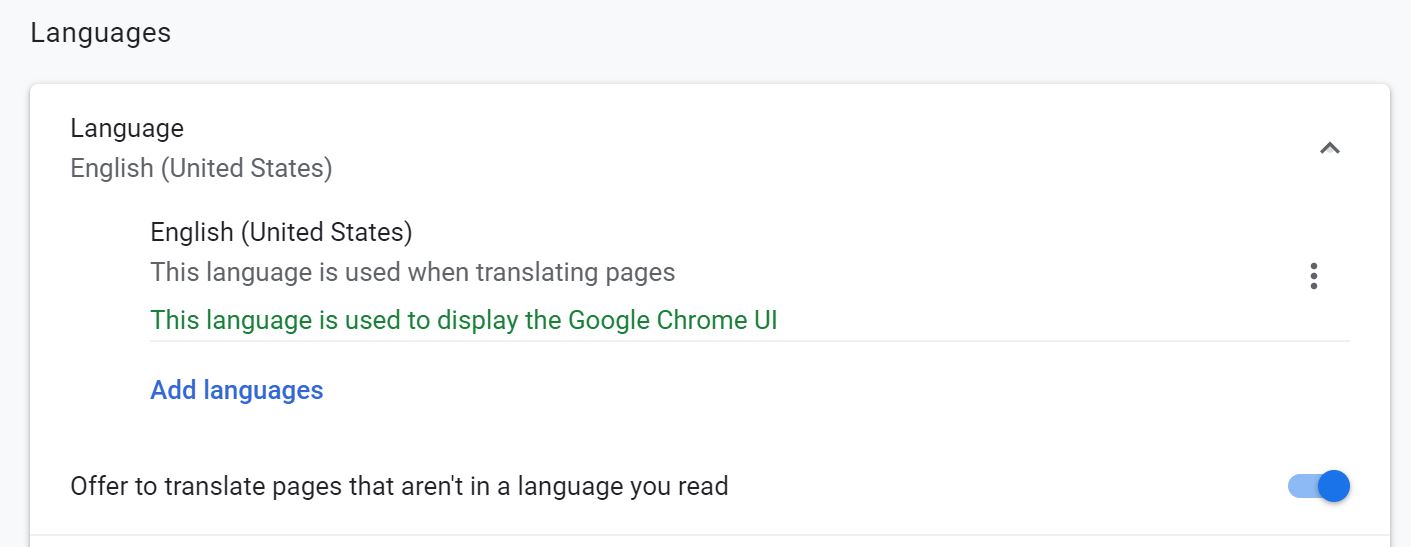
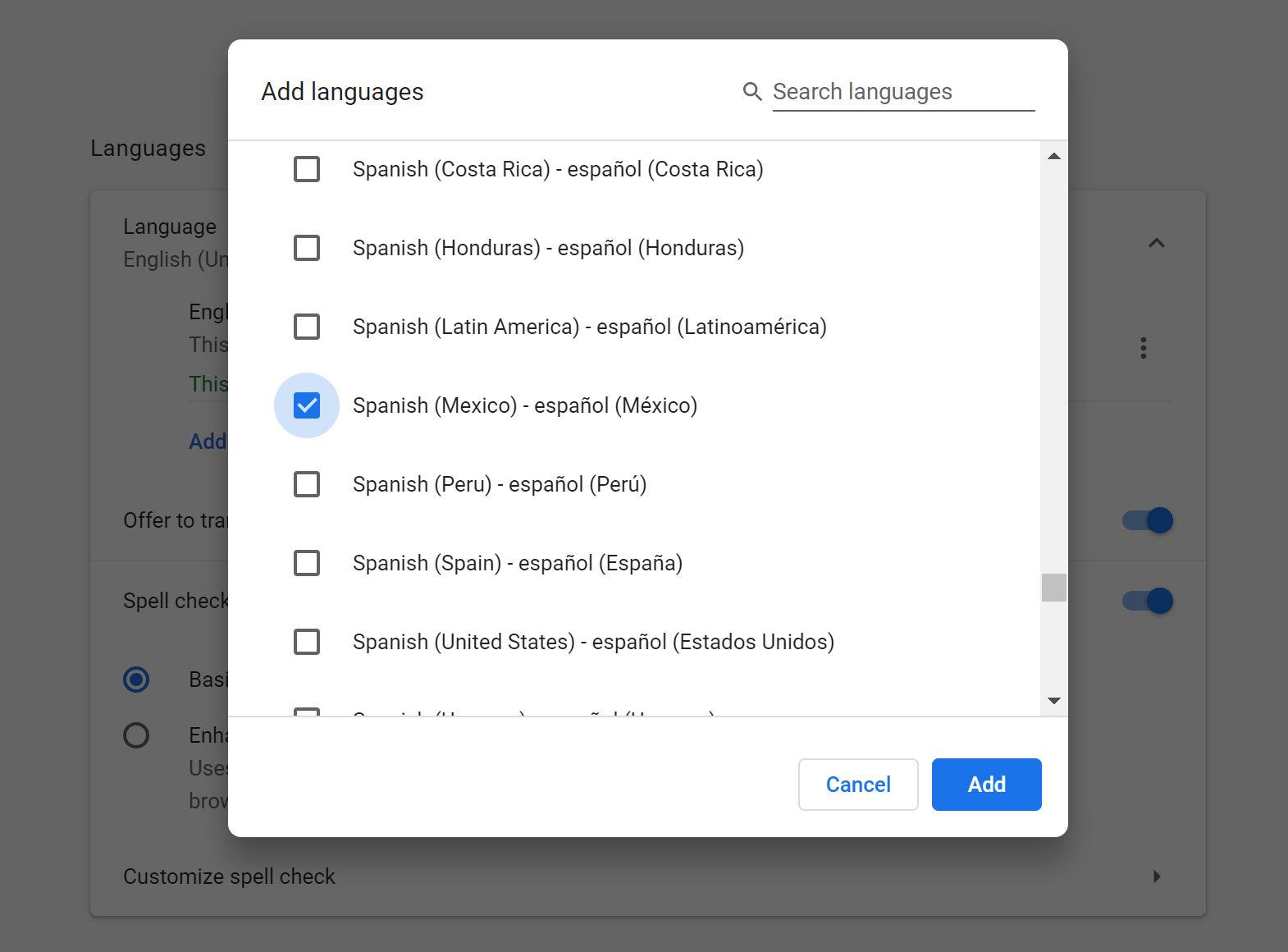
5. Click the more button next to the language you'd like to use.
- If the language isn't listed, add it by clicking Add languages.
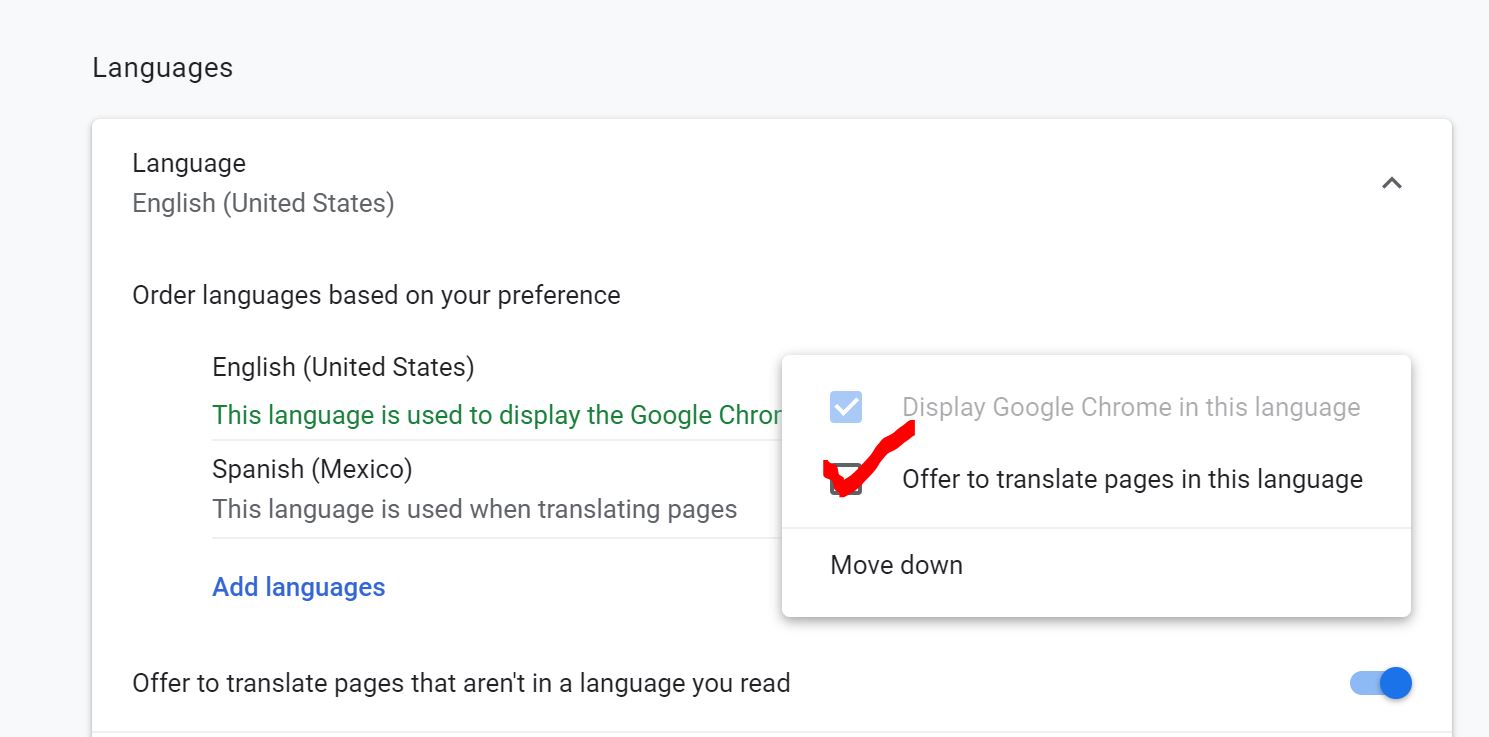
6. Turn on 'Offer to Translate Pages in this language'.
Now, when you visit Citizenserve you'll be prompted to translate the page. Also, you can click the Translate Page button in your address window. Likewise, it is easy to change your selected language.
Likewise, if you'd like to translate a single page into another language, visit this blog post.
Before you go, visit our Live Demos page to see other ways citizenserve can support your community development needs.
Use Google to Translate Citizenserve into Other Languages
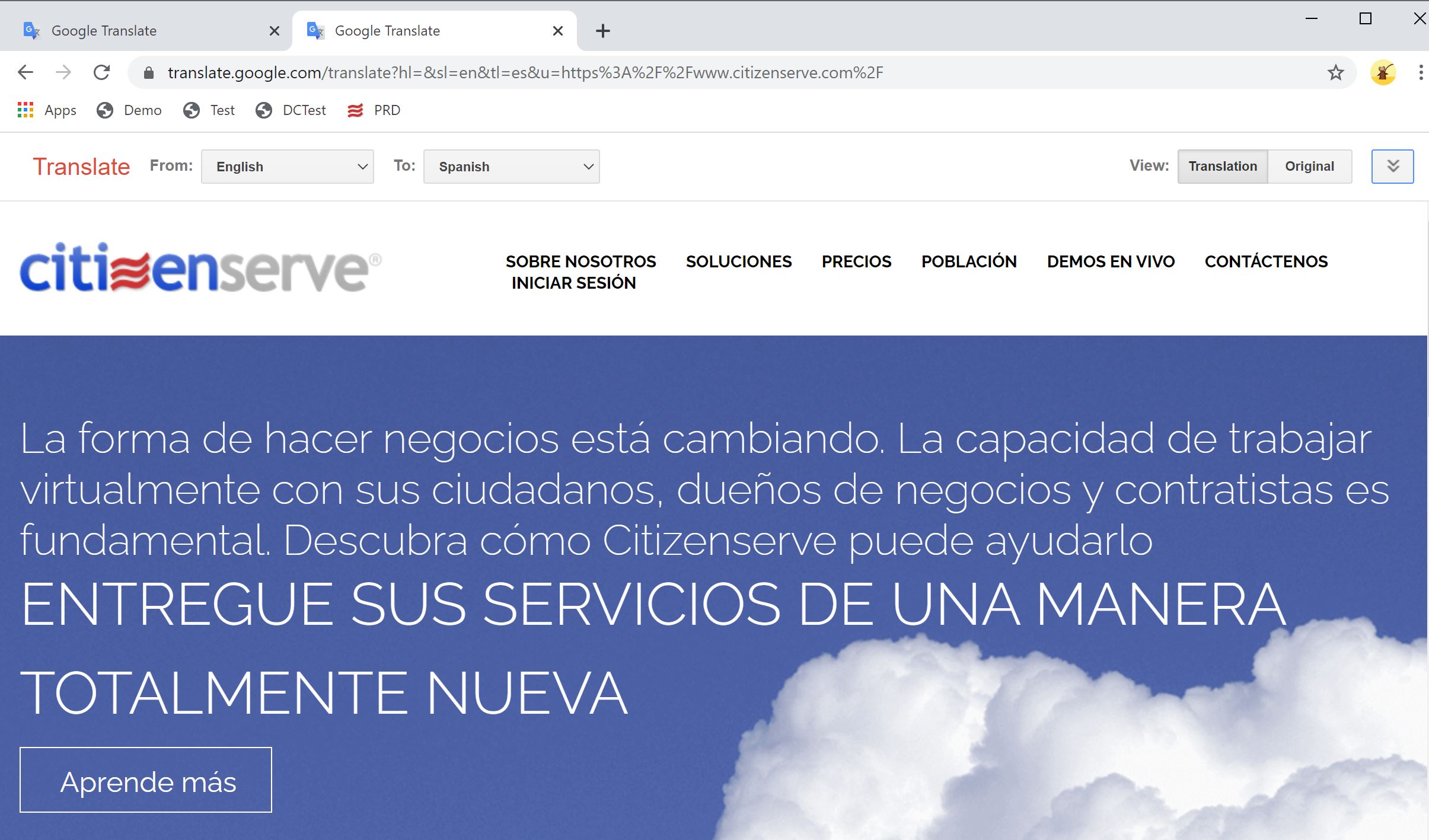
Citizenserve is browser-based, so we can use Google tools in the Chrome Browser to translate our staff and portal pages into any language defined in google. There are a few different ways to translate a page into another language - let's start with the easiest!
Use Google Translate to Display Citizenserve into Another Language
1. Navigate to Google Translate
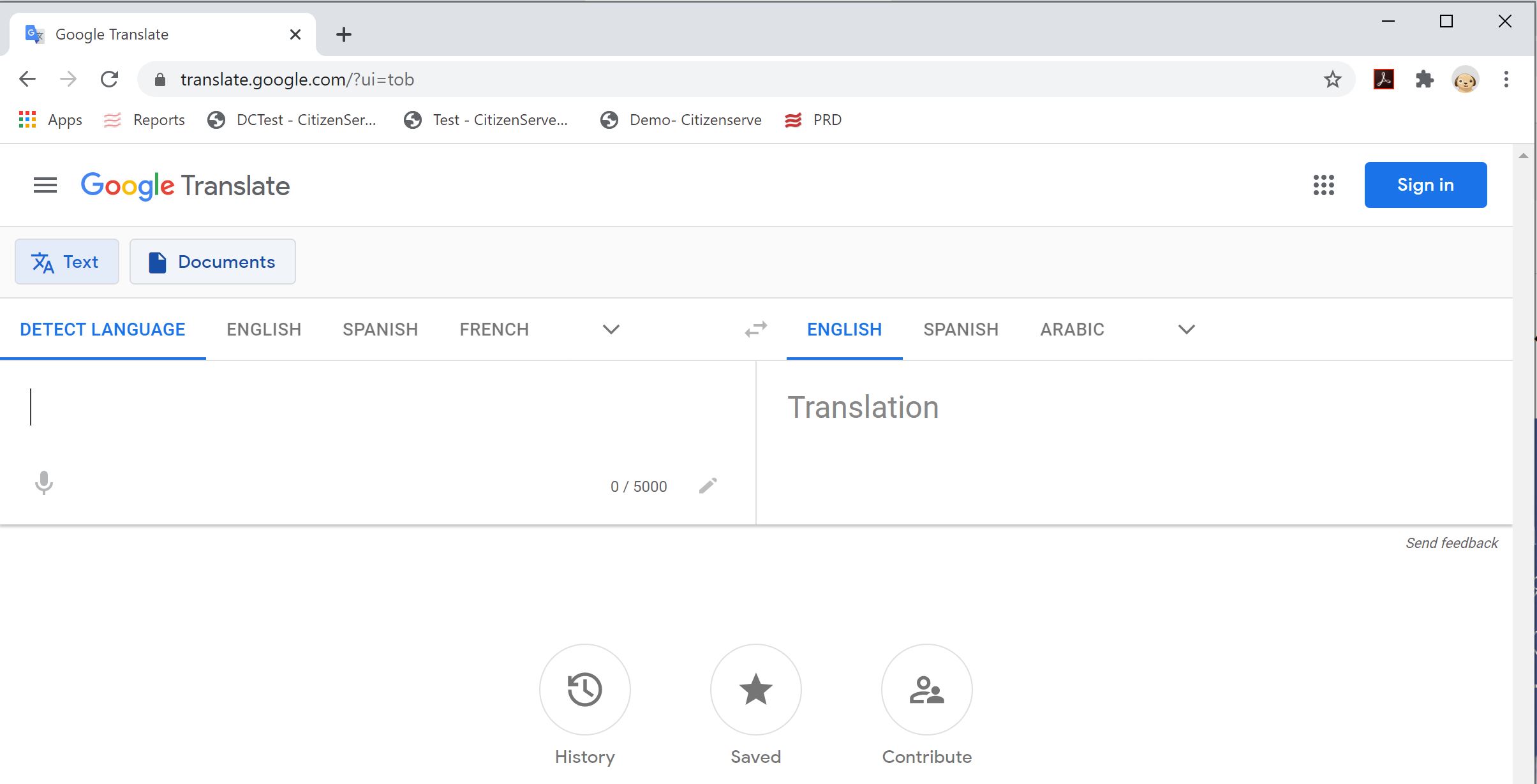
2. In the empty cell on the left, type or paste the website you'd like to translate - set the default language the page displays in.
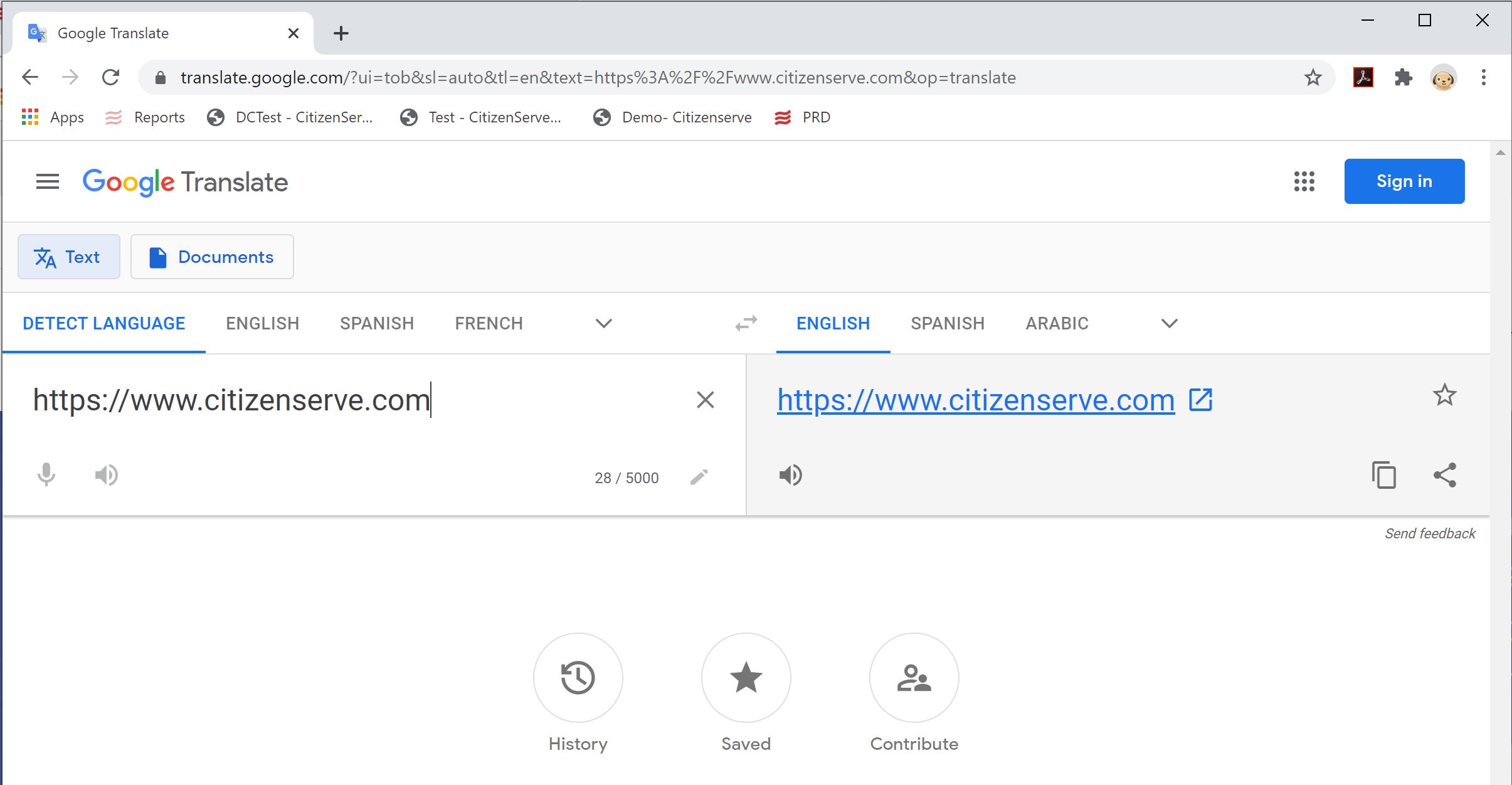
3. In the cell on right, your web address displays - select the language you'd like Google to translate into, click the arrow for more selections.
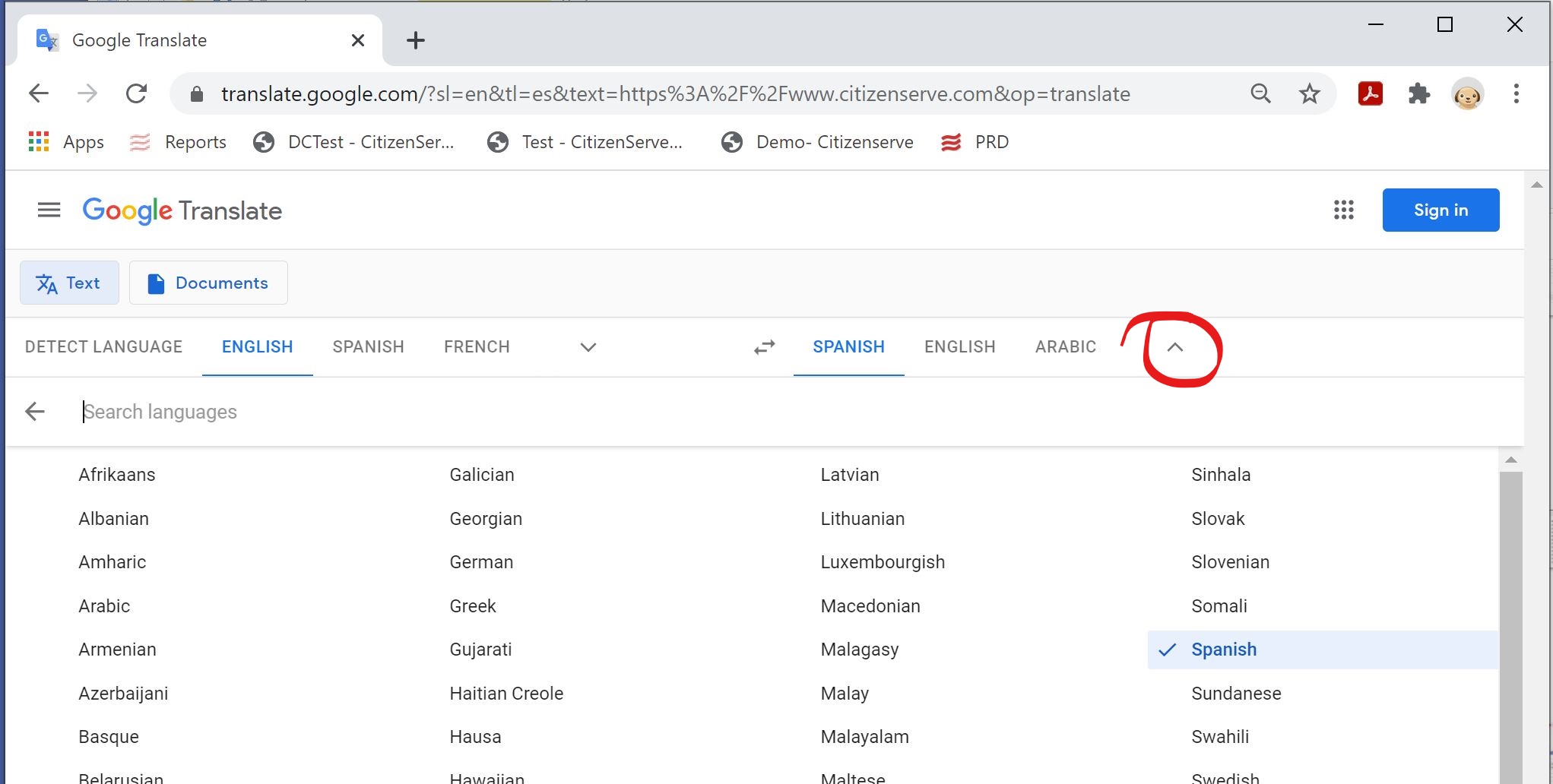
4. Click the translate button to load the translated page in a new browser tab.
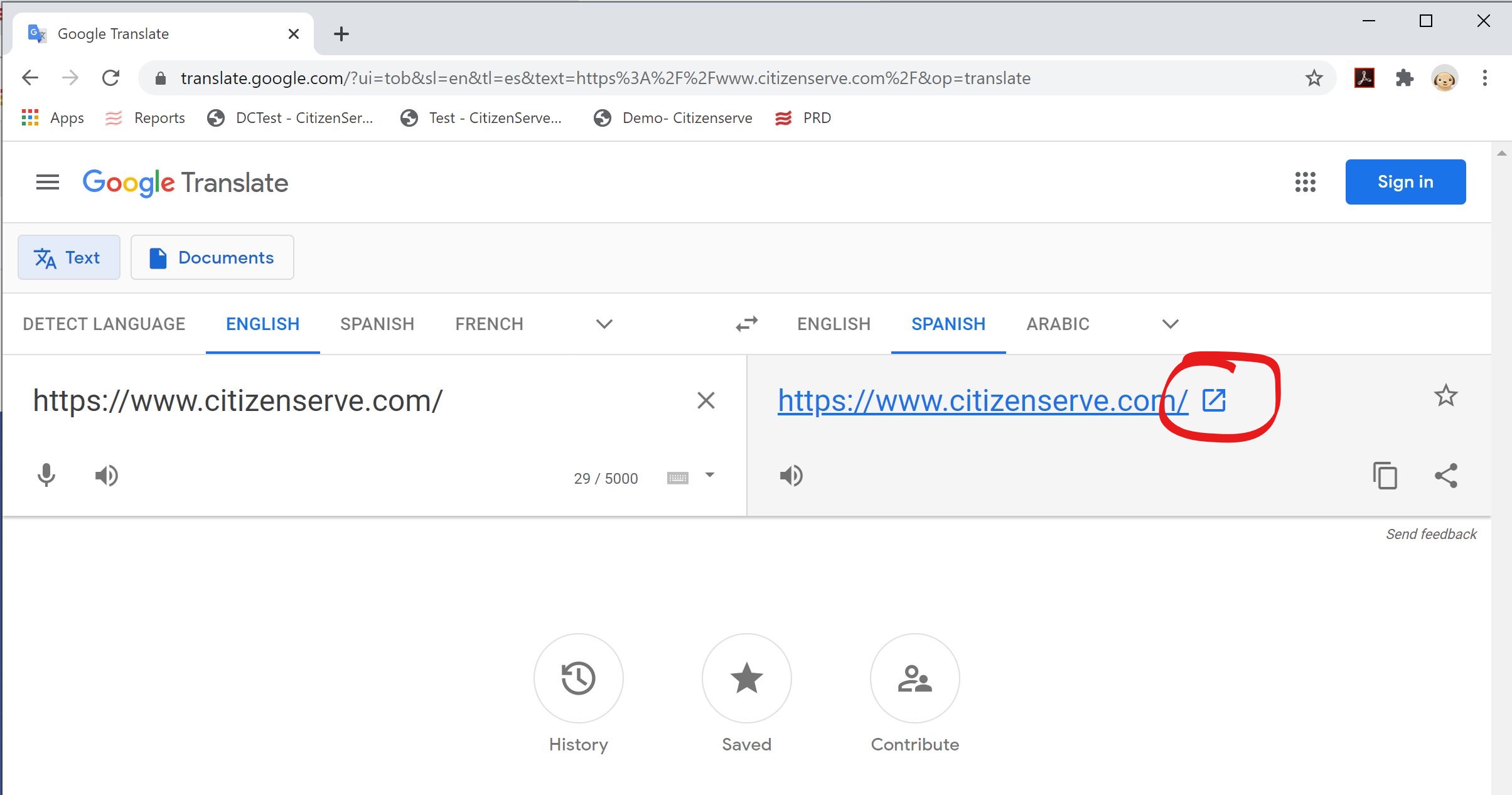
5. Your website should display in your desired language.
Add Google Translate Plugin to Your Browser
Google Translate Plugin provides a quick and easy way to translate any Chrome page. Follow these steps to install it:
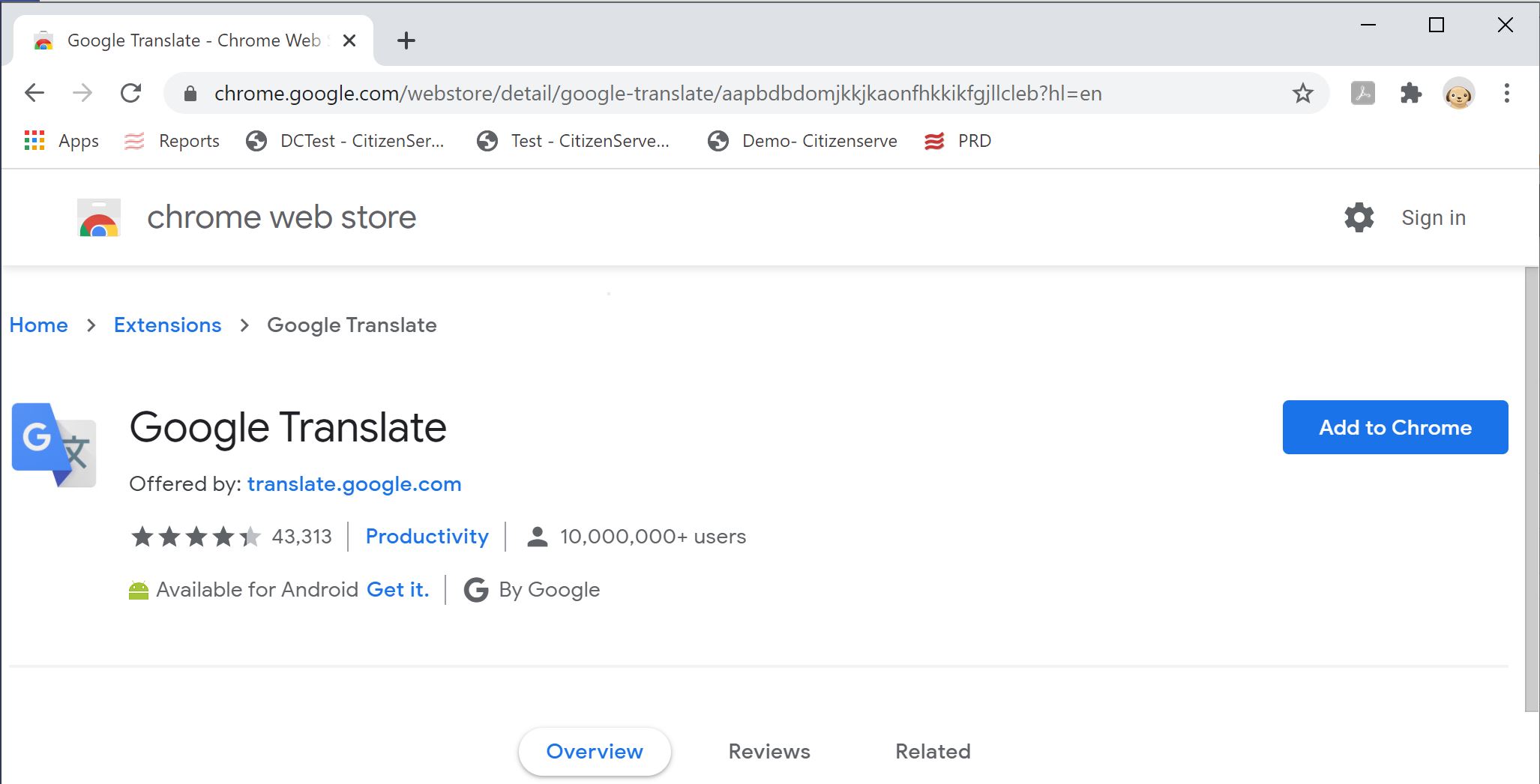
1. Navigate to Google Translate Plugin from Chrome and click "Add to Chrome".
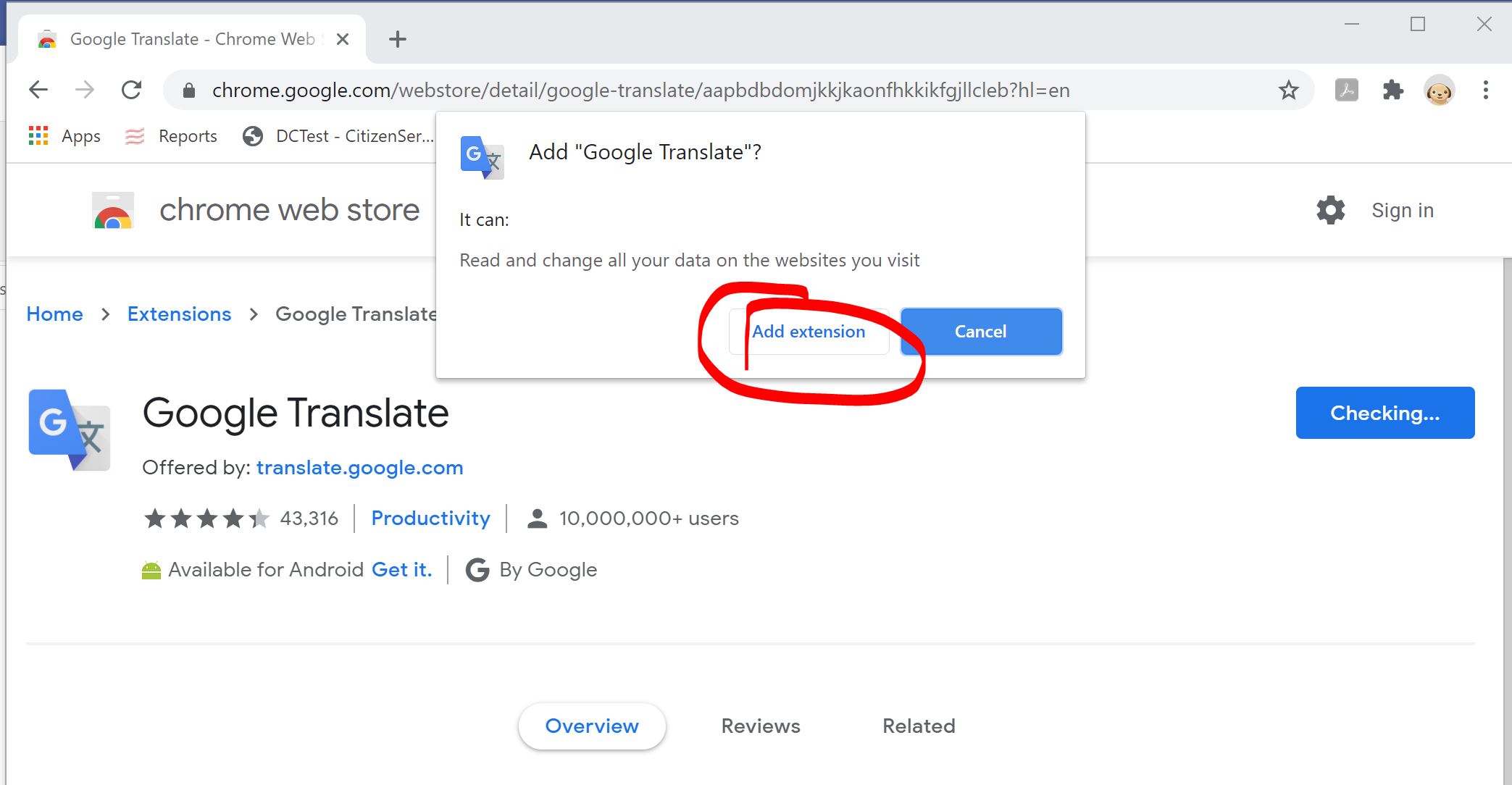
2. Confirm the 'Add Google Chrome?' popup by clicking 'Add Extension'
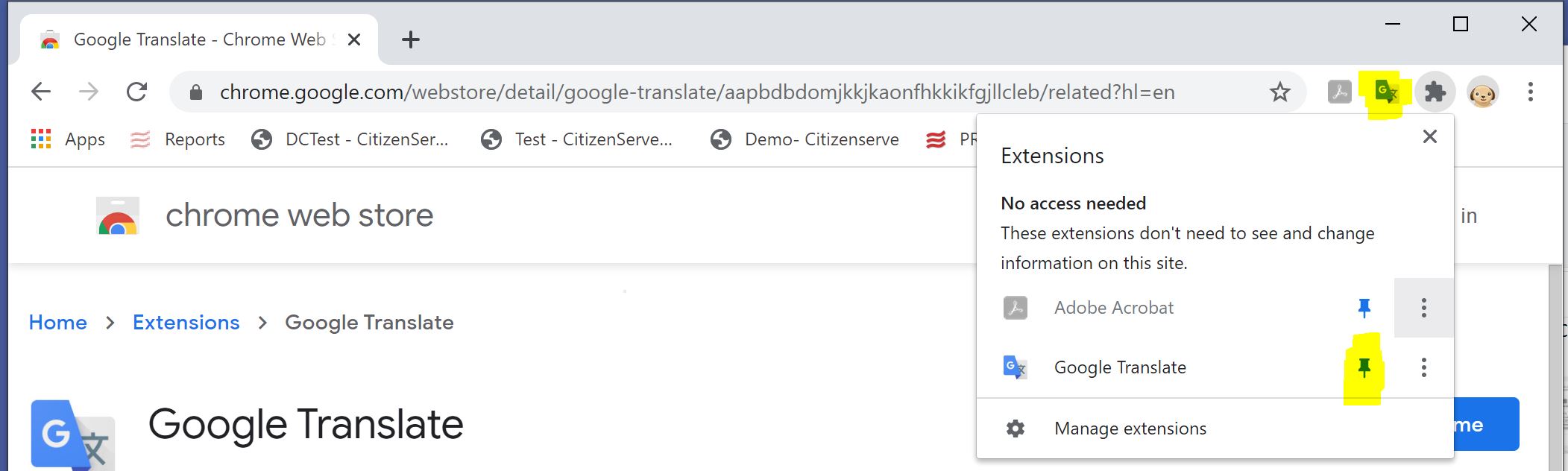
Pin the Google Translate Extension to Your Chrome Extension Tray
1. In the top right corner of Chrome, select the Extension Icon (the Puzzle piece)
2. Next to Google Translate, select the Push Pin icon to pin the extension to your extensions list.
Use Google Translate Plugin to Translate a Web Page.
1. Navigate to the web page you'd like to translate
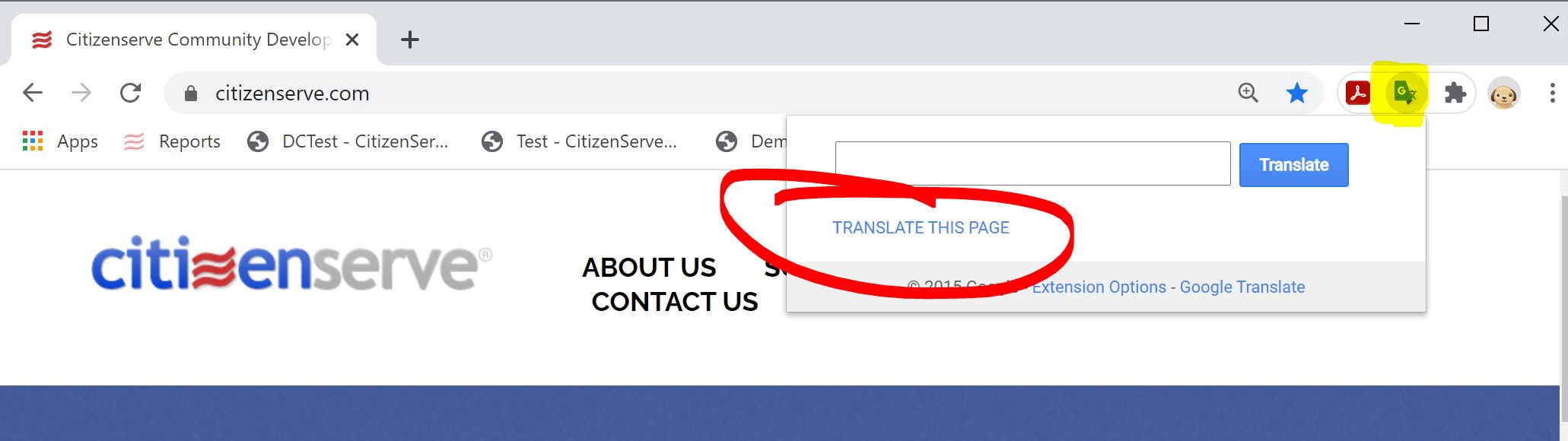
2. Click the Google Translate Plugin in Chrome, to the right of your address bar. If you have not pinned the extension, click the Google Extension (puzzle) icon and select Google Translate.
3. At the dropdown window, select TRANSLATE THIS PAGE.
4. On the new Google Translate toolbar that displays, select the 'Translate to:' language from the dropdown.
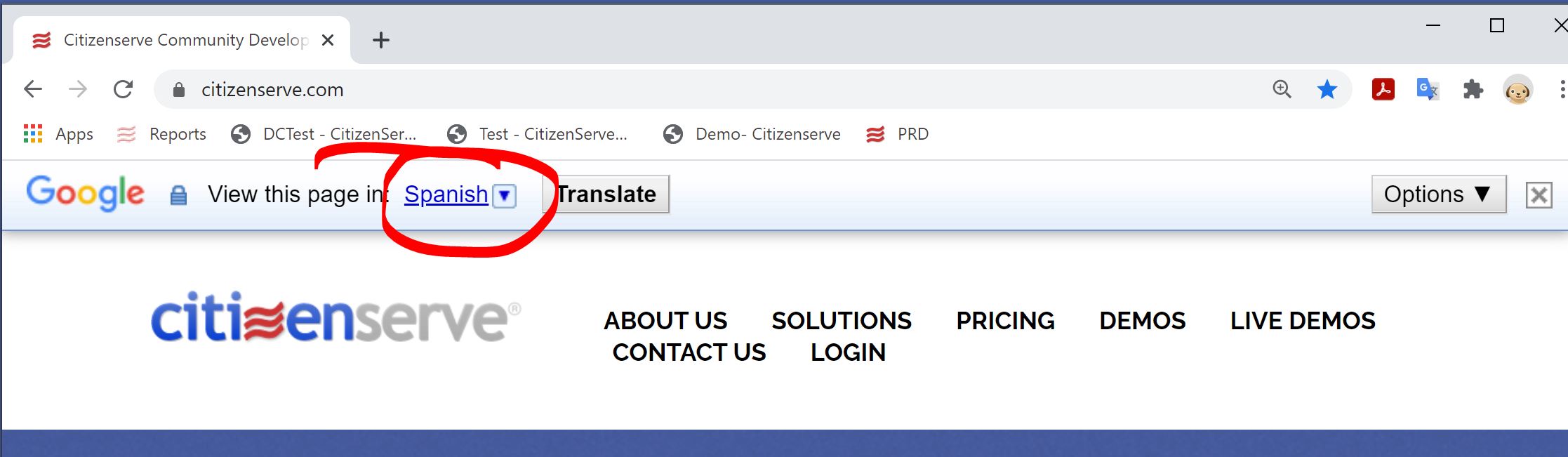
5. View the webpage in the language you selected. (You may need to hit the translate button)
To make a more permanent change to your google account, and all pages displayed by Chrome, visit this blog post.
Digital Community Development Software Massachusetts
Software demonstration of citizenserve's cloud based community development software focusing on permitting, planning and zoning, and health inspections